How to Install Docker and Docker Compose on Linux
Install Docker and Docker Compose the right way using Docker's official repository — skip the outdated apt package and the classic beginner mistakes.
Install Docker and Docker Compose on Ubuntu
Add Docker's official repository and install the current Docker Engine, CLI and Compose plugin — not the outdated apt package.
Estimated time: PT20M
Add the official repository
Install ca-certificates and curl, add Docker's GPG key to /etc/apt/keyrings, and add the Docker repository to your apt sources.
Install Docker Engine
Run apt-get install docker-ce docker-ce-cli containerd.io docker-buildx-plugin docker-compose-plugin.
Post-installation
Add your user to the docker group with usermod -aG docker $USER, then log out and back in so you can run Docker without sudo.
The Engine of the Modern Home Lab
Docker allows you to run applications in isolated containers. If you mess up an app, you simply delete the container; your base Linux system remains completely untouched.
Step 1: Use the Official Repository
Warning
Do not use sudo apt install docker.io. It is often outdated.
Instead, add Docker’s official GPG key and repo:
sudo apt-get updatesudo apt-get install ca-certificates curlsudo install -m 0755 -d /etc/apt/keyringssudo curl -fsSL https://download.docker.com/linux/ubuntu/gpg -o /etc/apt/keyrings/docker.ascsudo chmod a+r /etc/apt/keyrings/docker.asc
echo "deb [arch=$(dpkg --print-architecture) signed-by=/etc/apt/keyrings/docker.asc] https://download.docker.com/linux/ubuntu $(. /etc/os-release && echo "$VERSION_CODENAME") stable" | sudo tee /etc/apt/sources.list.d/docker.list > /dev/nullsudo apt-get updatesudo apt-get install docker-ce docker-ce-cli containerd.io docker-buildx-plugin docker-compose-plugin
Step 2: Post-Installation
Add your user to the Docker group so you don’t have to type sudo every time:
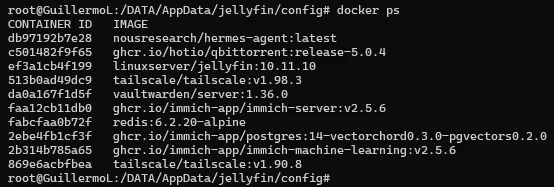
sudo usermod -aG docker $USERHere is a look at my actual terminal running docker ps from inside my Jellyfin config directory. As you can see, I am running everything from Vaultwarden to Immich, qBittorrent, and Hermes AI.
Once Docker is running, the natural next step is writing your own stack — start with my Docker Compose template for self-hosting. And when a tutorial gives you nothing but a docker run one-liner, paste it into the docker run to Compose converter to get a service block you can drop straight into your stack.